Preventing duplicate Enter key execution during Korean input in input, feat. isComposing
The problem
I was building a page in a side project that takes user input. At one point, I wanted to save the input value through a keydown handler when the user pressed Enter after typing into an input. That’s when I ran into an issue where the keydown handler executed one extra time for the last character.
For example, if I typed one of my favorite songs, '소문의 그애'1, and pressed Enter, not only was '소문의 그애' saved, but the last character, '애', was also saved separately.
Reproduction code
There was an input field created with an <input> element, and the intended behavior was to save the string value in that field when the user clicked "추가" or pressed Enter.
To reproduce just the part of the code related to the issue, it looked like this.
Clicking the add button or pressing Enter in the input field would call handleAddItem, which would add the value in the input to items.
function App() {
  const [items, setItems] = useState<Item[]>([]);
  const [inputValue, setInputValue] = useState("");

  const handleAddItem = () => {
    if (inputValue.trim() === "") return;

    const newItem: Item = {
      id: Date.now(),
      text: inputValue,
    };

    setItems([...items, newItem]);
    setInputValue("");
  };

  return (
    <div>
      <input
        type="text"
        value={inputValue}
        onChange={(e) => setInputValue(e.target.value)}
        placeholder="새 항목을 입력하세요"
        onKeyDown={(e) => {
          if (e.key === "Enter") {
            handleAddItem();
          }
        }}
      />
      <button onClick={handleAddItem}>추가</button>
      {/* items 항목들을 표시하는 코드 */}
    </div>
  );
}
At this point, if I entered Korean text instead of English letters or numbers and tried to add the item by pressing Enter, the problem described above occurred. handleAddItem was called not only for inputValue but also once more for the last character of that value, so two items were added to items.
Cause and solution
The IME API
The root cause comes from the fact that Korean is a compositional writing system. The same issue happens with other languages written through character composition, such as Japanese and Chinese. For example, it can also happen during the process of converting Hiragana into Kanji.
So why do compositional characters cause this problem? The cause is the IME (Input Method Editor) API, which is used to produce characters through composition based on certain types of keyboard input. The IME API is used for CJK character input, character input via touchscreen handwriting recognition, and similar cases, and is usually handled by the OS.2
A simple example of the IME API in action is typing ㄱ + ㅏ, which gets combined into 가. In this way, the IME API is involved in every Korean character we type. In many text editors, you can also see an underline under the character currently being composed while typing Korean. That’s also the IME API at work.
Up to this point, the IME API sounds like a helpful API that makes Korean input possible. But why does it cause the keydown handler to run twice? Because when an Enter key event occurs during the IME composition process, both the OS and the browser handle that event.
In the next section, let’s look more closely at why this happens based on how the IME API works.
So why is Enter recognized twice?
The default behavior of the keydown event includes running the text composition system.3 Since IME is part of that system, pressing Enter while typing compositional characters like Korean can also complete composition.
These composition events have an order, as follows.4
- compositionstart: when typing of a compositional character begins
- compositionupdate: when composition is updated due to new character input
- compositionend: when composition is completed and a full character is produced
For example, suppose you type the Korean character '김'. When the ㄱ in '김' is entered, a compositionstart event occurs. Then as ㅣ and ㅁ are entered, the character changes to '기' and then '김', and each of those updates triggers a compositionupdate event. After that, if you type ㅅ, the input becomes '김ㅅ', and the character '김' is completed. Since one character has now been finalized, a compositionend event occurs.
For reference, the period between a compositionstart event and its corresponding compositionend event is called a composition session.
In other words, every time you type a Korean character, the composition system is working through keydown events. And in this context, Enter generally has the meaning of Accept for confirming composition.5
So when I entered the Korean text '소문의 그애' into the input field in the code above and pressed Enter, the behavior was roughly as follows. (The exact order may vary slightly by browser.)
- The last character of '소문의 그애', namely '애', is still being composed.
- An
"Enter"keydown event occurs, because keydown events that happen during a composition session also need to be processed. At this point, however, Enter serves as composition "Accept".6 - Composition is finalized through the composition "accept" triggered by
"Enter". This happens at the OS level. (compositionend) - The browser then processes the Enter keydown event once again.
That means the OS and the browser each interpret the same keydown differently. The OS treats it as finalizing character composition, while the browser treats it as the Enter keydown event itself, such as for inserting a line break. That is why the keydown handler ends up being called twice. This issue does not occur with non-compositional characters like English letters.
Solving it with the isComposing flag
The cause takes a while to explain, but the solution is simple.
KeyboardEvent has an isComposing property that indicates whether the event occurred during an active composition session.7 If you check this property and only run the action you want—saving the value in the input field—when composition is not in progress, the problem goes away.
In code, it looks like this. The only change is adding an isComposing check to the condition for calling handleAddItem inside the input element’s onKeyDown handler.
<input
  type="text"
  value={inputValue}
  onChange={(e) => setInputValue(e.target.value)}
  placeholder="새 항목을 입력하세요"
  onKeyDown={(e) => {
    if (e.key === "Enter" && !e.nativeEvent.isComposing) {
      handleAddItem();
    }
  }}
/>
Another option is to maintain your own isComposing flag and use the input’s onCompositionStart and onCompositionEnd events. Some versions of React’s Synthetic Event do not support isComposing, and in those cases this approach can be used instead.
const [isComposing, setIsComposing] = useState(false);

// ...

<input
  // ...
  onCompositionStart={() => setIsComposing(true)}
  onCompositionEnd={() => setIsComposing(false)}
  onKeyDown={(e) => {
    if (e.key === "Enter" && !isComposing) {
      handleAddItem();
    }
  }}
/>;
Managing isComposing state directly like this also lets you control the behavior without relying on browser compatibility details or accessing nativeEvent.
Considering alternatives
Using the submit event of an HTML form
Is there another way? Submitting information by pressing Enter is actually a very common interaction. If you use the internet often, you have probably pressed Enter to log in on a login page at least once.
Naturally, if you use the HTML <form> tag and the submit event—which were made for submitting information—this Enter behavior can be handled smoothly.
So you can solve the problem simply by rewriting the input section like this. The reason for adding e.preventDefault(); is that the default behavior of form submission is a page refresh, which would wipe out the React state.
Since AJAX has become standard, refreshing the page on form submission is no longer strictly necessary, so I disabled it here. In a real project with a database, it might have been fine not to call e.preventDefault();. But that’s not the main point of this post, so I won’t go into detail. The important part is that this can be handled cleanly with a form.
<form
  onSubmit={(e) => {
    e.preventDefault();
    handleAddItem();
  }}
>
  <input
    type="text"
    value={inputValue}
    onChange={(e) => setInputValue(e.target.value)}
    placeholder="새 항목을 입력하세요"
  />
  <button type="submit">추가</button>
</form>
Why I didn’t choose it
In the actual project, I didn’t apply it this way. The reason was that this input field was part of a larger form.
In terms of the project structure, the purpose of this input field was to enter a kind of tag list. The tags added through this field were part of a larger set of information that would eventually be submitted through a form and saved to the database. So if I used a form tag just to save the value of this input field, I would have had to place a form inside another form.
But nested forms are not allowed by the HTML standard.
4.10.3 The form element
Content model: Flow content, but with no form element descendants.
HTML Living Standard, https://html.spec.whatwg.org/multipage/forms.html#the-form-element
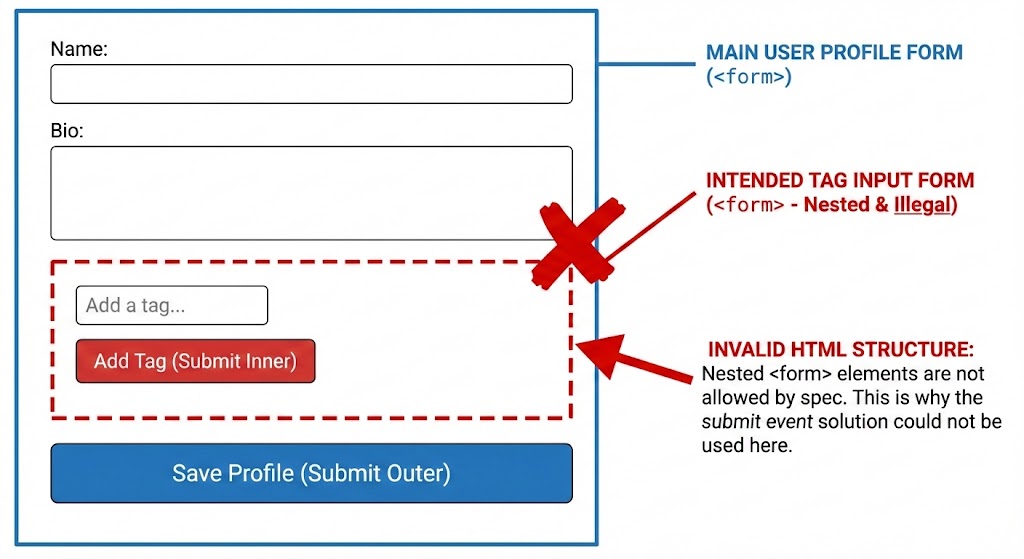
So to avoid using a nested form, I just went with the isComposing approach.
Of course, if you really want to use the form submit event, you can avoid nested forms by connecting the input and button to an external form using their form attribute.
<input
  form="my-form"
  type="text"
  value={inputValue}
  onChange={(e) => setInputValue(e.target.value)}
  placeholder="새 항목을 입력하세요"
/>
<button type="submit" form="my-form">
  추가
</button>

<form
  id="my-form"
  onSubmit={(e) => {
    e.preventDefault();
    handleAddItem();
  }}
/>
But I didn’t want to force the use of a form tag to that extent. Also, since the form attribute on the input tag is not especially widely used, I was even less inclined to choose it.
Wrap-up
We looked at why pressing Enter can cause a keydown event handler to run twice unexpectedly. By understanding that the root cause lies in the IME (Input Method Editor) API used by the OS and browser to compose text, I was able to find a cleaner and more fundamental solution using the standard isComposing property.
I also tried to find a more general solution that better aligned with HTML standards by using the form submit event. But implementing that would have required either a nested form—which HTML does not allow—or a somewhat tricky workaround, so I ultimately decided against it.
Still, from one small bug, I ended up digging into CJK input handling, form behavior, and the HTML spec.
References
Input Method Editor API
https://www.w3.org/TR/ime-api/
UI Events
https://w3c.github.io/uievents/#events-composition-input-events
React, 한글 입력시 keydown 이벤트 중복 발생 현상
Improving Japanese Input UX in Multilingual Applications: Properly Handling IME Conversion
Event order between "compositionend" and "input"
https://github.com/w3c/uievents/issues/202
엔터 키로 전송 시 끝 글자만 전송되는 문제 해결하기
Understanding Composition Browser Events
https://medium.com/square-corner-blog/understanding-composition-browser-events-f402a8ed5643
Handling IME events in JavaScript
https://www.stum.de/2016/06/24/handling-ime-events-in-javascript/
MDN Glossary, Input method editor
https://developer.mozilla.org/en-US/docs/Glossary/Input_method_editor
MDN, Element: compositionstart event
https://developer.mozilla.org/en-US/docs/Web/API/Element/compositionstart_event
MDN, Element: compositionend event
https://developer.mozilla.org/en-US/docs/Web/API/Element/compositionend_event
Wikipedia, Input method
https://en.wikipedia.org/wiki/Input_method
HTML spec 4.10.3 The form element
https://html.spec.whatwg.org/multipage/forms.html#the-form-element
Can you nest HTML forms?
https://stackoverflow.com/questions/379610/can-you-nest-html-forms
Footnotes
-
Murasaki Ima - 소문의 그 애 https://www.youtube.com/watch?v=-tO9d1Nwd0M ↩
-
https://developer.mozilla.org/en-US/docs/Glossary/Input_method_editor ↩
-
If needed, you can also log the events yourself using the MDN, Element: compositionstart event documentation. ↩